If you’re running Google Ads, you’ve probably had that moment. You pull up your search term report and see someone clicked your ad after searching “free accounting software” when you’re selling a $200/month subscription. Or your HVAC company showed up for “HVAC technician salary.”
That’s money walking out the door.
Negative keywords are the fix. They tell Google “don’t show my ads for these searches.” Simple concept, but doing it well takes some practice.
Here’s how I approach it for both search campaigns and Performance Max.
Why This Matters
Google’s matching algorithms are aggressive. Even exact match keywords will show your ads for searches Google considers “close enough.” Sometimes that works. Often, it doesn’t.
Every irrelevant click costs you the click itself, plus the budget that could’ve gone to someone who actually wanted what you sell. And over time, bad clicks hurt your Quality Score—lower CTR, poor engagement, no conversions. Google notices, and your CPCs go up.
If you’re running Smart Bidding (and most accounts are now), there’s another cost: delayed negatives feed bad data into the machine learning. Google’s algorithm learns from every click, so letting junk traffic run for weeks before adding negatives slows down the learning phase and hurts performance longer than you’d think.
Negative keywords aren’t just about saving money. They make your whole account work better.
Where to Find Negative Keywords
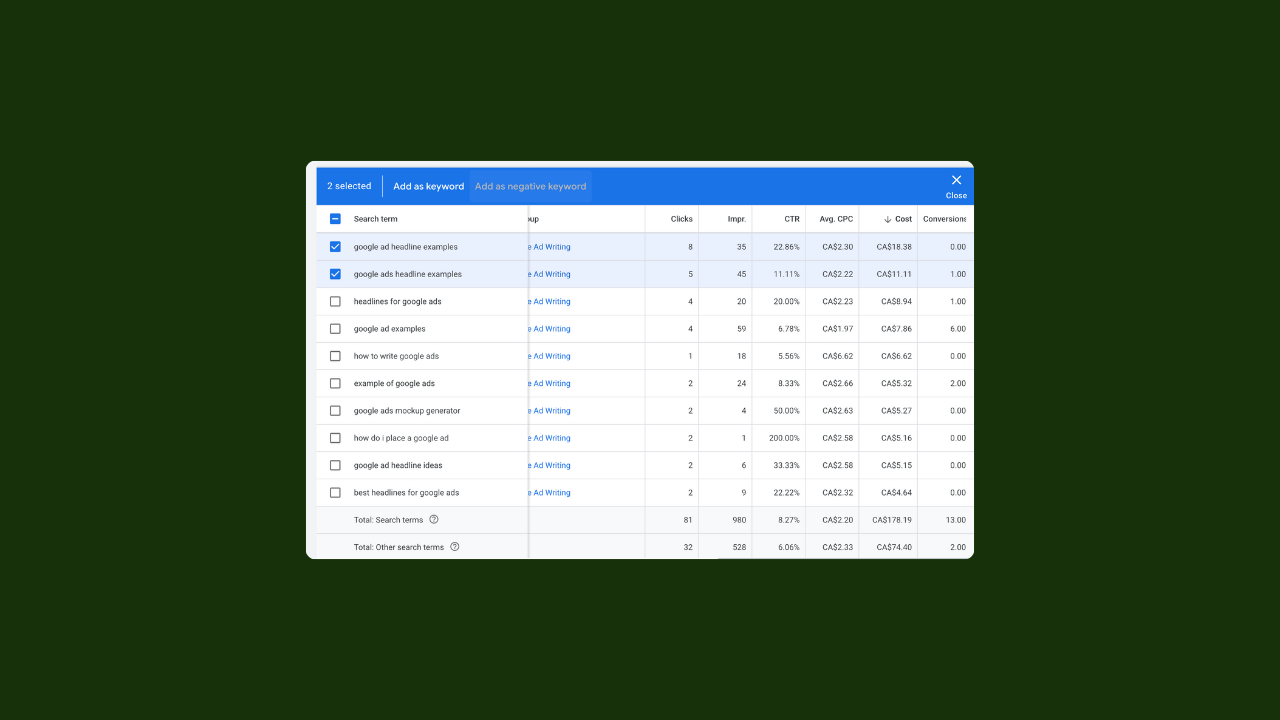
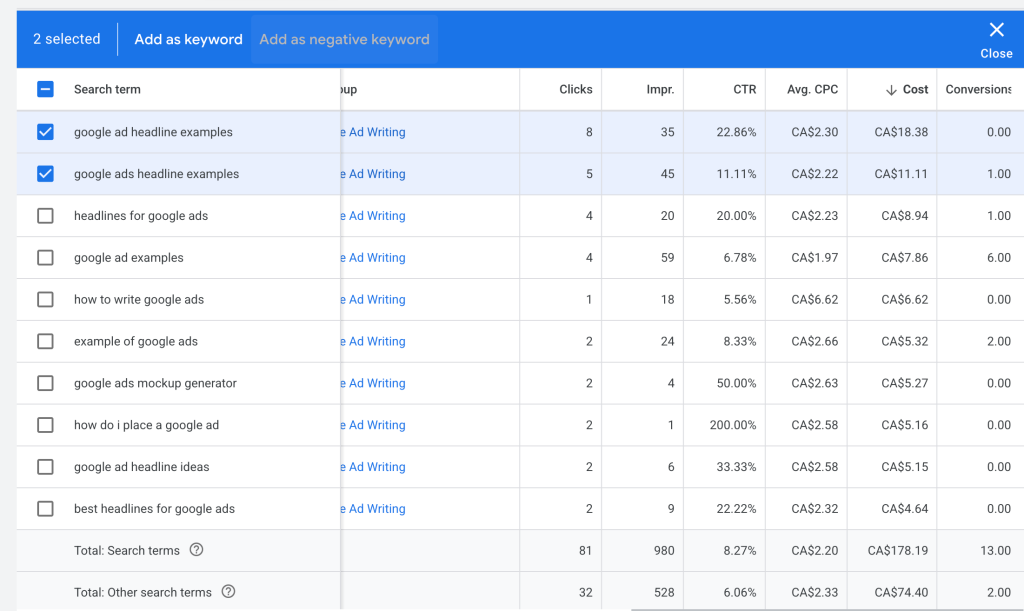
Start with your search term report. Go to Insights & Reports → Search terms and look at what actually triggered your ads.
What I’m looking for:
Obviously irrelevant searches—someone selling enterprise software doesn’t need “free project management template” clicks
Wrong intent—”how to become a plumber” when you’re a plumbing company looking for customers
Job seekers—anything with “careers,” “salary,” “hiring,” or “jobs”
DIY and free hunters—”free,” “cheap,” “how to do it yourself” if you’re not offering that
Informational queries—”what is” and “how does” searches often don’t convert
Don’t just skim the top. Sort by cost (highest first) and work down. The expensive irrelevant clicks hurt the most. (This is exactly what our Negative Keyword Tool does automatically—flags the wasteful terms so you can review and add them in a few clicks.)
For larger accounts, n-gram analysis is worth learning. Instead of reviewing queries one by one, you break them into word chunks and look for patterns. If you’re seeing “cheap running shoes,” “cheap basketball shoes,” and “cheap dress shoes” all wasting money, n-gram analysis surfaces “cheap” as the common problem. One broad negative eliminates dozens of irrelevant variations.
Beyond the report, think about who you don’t want before you even launch. Are there industries you don’t serve? Price points that don’t fit? Use cases you can’t support? Turn those into negatives before you spend a dollar. The best-optimized accounts often have 3-5x more negative keywords than targeted keywords.
Google’s autocomplete is useful too. Type your main keywords and see what comes up. You’ll find search patterns you hadn’t considered.
Match Types for Negatives
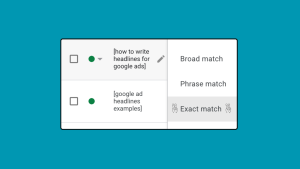
These work differently than regular keywords, and the difference trips up a lot of advertisers.
The critical thing to know: negative match types do NOT match close variants, synonyms, or singular/plural versions. This is the opposite of how positive keywords work. If you add “shoe” as a negative, “shoes” still gets through. You have to add both manually.
As of mid-2024, Google started automatically blocking misspellings of your negatives—that’s new and helpful. But singular/plural, synonyms, and related terms still need to be added separately.
| Match Type | Negative Keyword | Blocks | Doesn’t Block |
|---|---|---|---|
| Broad | running shoes | “buy running shoes”, “shoes for running cheap” | “running sneakers”, “athletic shoes” |
| Phrase | “running shoes” | “buy running shoes online”, “running shoes sale” | “shoes for running”, “running trail shoes” |
| Exact | [running shoes] | “running shoes” | “buy running shoes”, “running shoes for men” |
Remember: none of these block “running shoe” (singular)—you’d need to add that separately.
One more nuance: negatives only apply to the first 16 words of a search query. For most searches this doesn’t matter, but it’s worth knowing if you’re in a space with longer-tail queries.
Broad match is usually what you want for single-word negatives—it’s more protective. Save exact match for when you need precision, like blocking a specific competitor name but not related terms.
If you’re also running Microsoft Ads, note that they don’t support broad match negatives at all. Use phrase match for single words if you’re importing lists across platforms.
Where to Apply Them
You’ve got three levels: account, campaign, and ad group.
Account-level lists work best for universal negatives that apply everywhere—job-related terms, competitor names you never want to bid on, profanity, “free” if you have no free offering. Create these in Tools & Settings → Shared Library → Negative keyword lists.
Campaign-level negatives help with segmentation. If you have separate campaigns for different products, negative out Product B terms from Campaign A to keep traffic where it belongs.
Ad group-level negatives let you fine-tune within a campaign.
Start broad, get specific. Account-level for the obvious stuff, then work down.
The PMAX Reality
Performance Max has come a long way on negatives, but there are still important limitations.
The good news: as of 2025, you can add negatives directly in the Google Ads interface without contacting a rep. The limit increased to 10,000 keywords per campaign, and negative keyword lists are now supported for PMAX. This is a big improvement from a year ago when you needed to submit a request form and wait.
The critical limitation most people miss: PMAX negative keywords only apply to Search and Shopping inventory. They do NOT affect YouTube, Display, Gmail, Discover, or Maps placements. Depending on your campaign, that can be 40-70% of your spend that negatives won’t touch.
For non-Search channels, you need placement exclusions and content exclusions instead—different tools, different part of the interface.
You also get limited visibility into what searches triggered your ads. Low-volume queries often won’t show up in reports even if they’re wasting money. You’re flying partially blind compared to standard Search campaigns.
Focus on what you know doesn’t fit: your own brand name (if running separate brand campaigns), products you don’t offer, irrelevant industries, job searches, competitors. If you’re also running search campaigns, use that search term data to inform your PMAX negatives. The irrelevant queries hitting search are likely hitting PMAX too.
Brand exclusions work separately from negative keywords through Google’s Brand Library. These function like negative broad match and automatically capture misspellings across languages—but they can take 4-6 weeks to process for new brands.
Building a Routine
Finding negatives isn’t a one-time thing. It’s ongoing.
I spend 15-30 minutes weekly reviewing search terms for active campaigns, focusing on highest cost terms and anything with zero conversions. Once a month I go deeper—reviewing my negative lists, checking if I’m accidentally blocking good traffic, looking at trends.
For new campaigns or accounts heavy on broad match, review more frequently—at least weekly until things stabilize. Mature accounts with mostly exact match can stretch to every two weeks.
Any time I launch new campaigns or add new keywords, I take a fresh look at negatives.
The manual review gets tedious, which is why we built the Negative Keyword Monitor at 30chars—it scans your search term reports automatically and surfaces suggestions so you’re not spending hours in spreadsheets. But even with automation, you need to understand what you’re looking at and why.
Mistakes to Avoid
Being too aggressive. Over-negating kills good traffic. Before adding a negative, ask: “Is there any scenario where this search could convert?”
Forgetting the close variant difference. Adding “flower” leaves “flowers” wide open. Add both.
Ignoring match types. Adding “free” as negative broad match blocks “free trial” and “hassle-free.” Think it through.
Set it and forget it. The search landscape changes. Negatives that made sense six months ago might be hurting you now—especially if your product line has expanded.
Not checking for conflicts. Negatives can accidentally block your own positive keywords, especially with shared lists across campaigns. Google’s conflict detection doesn’t always catch issues with shared lists.
Only looking at costs. A search term might have high spend but also high conversions. ROAS and CPA matter more than raw cost.
Assuming PMAX negatives cover everything. They don’t. Search and Shopping only.
Wrapping Up
Negative keywords aren’t exciting. But they’re the difference between an account that leaks money and one that runs efficiently.
The advertisers who do this well aren’t doing anything special. They review their search terms regularly, understand that negatives work differently than positive keywords, and catch waste before it adds up.
Start with the obvious stuff. Build from there. Make it a habit.